Outlook works with BSC email, though it assumes you're on Exchange and needs correcting partway through. These steps cover it.
Before you start
Set your BSC password first if you haven't already. You'll need it partway through.
If you'd rather use the Mail app that came with your iPhone, see Add BSC mail to iPhone: Apple Mail.
* Steps shown on iOS 18.Get the Outlook app
Open the App Store, tap Search at the bottom, and search for Microsoft Outlook. It's free. Look for the blue envelope with an O, published by Microsoft Corporation.
Or open it directly: Microsoft Outlook on the App Store.
Add your account
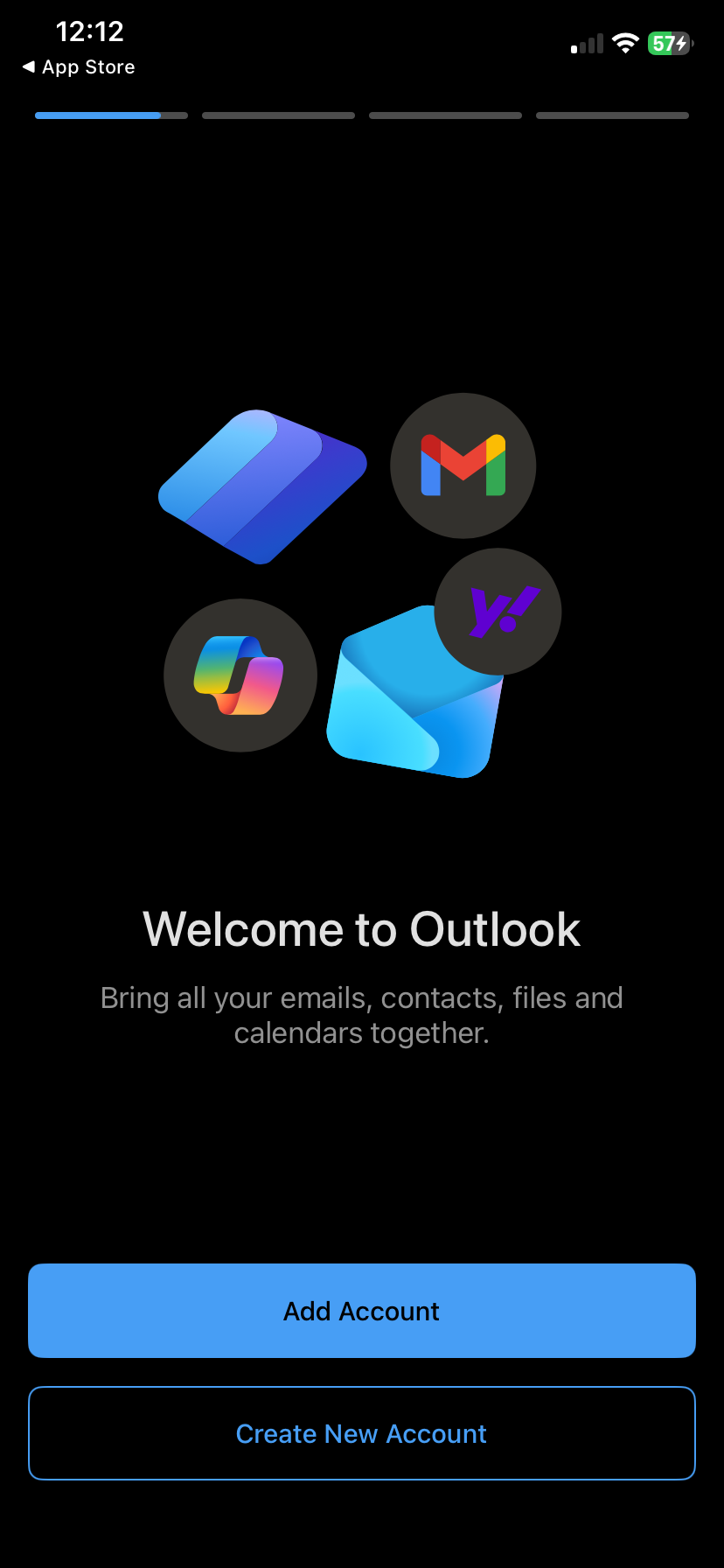
Open Outlook and tap Add Account. If you already have another account in Outlook, tap your profile picture, then the settings gear, then Add Mail Account.
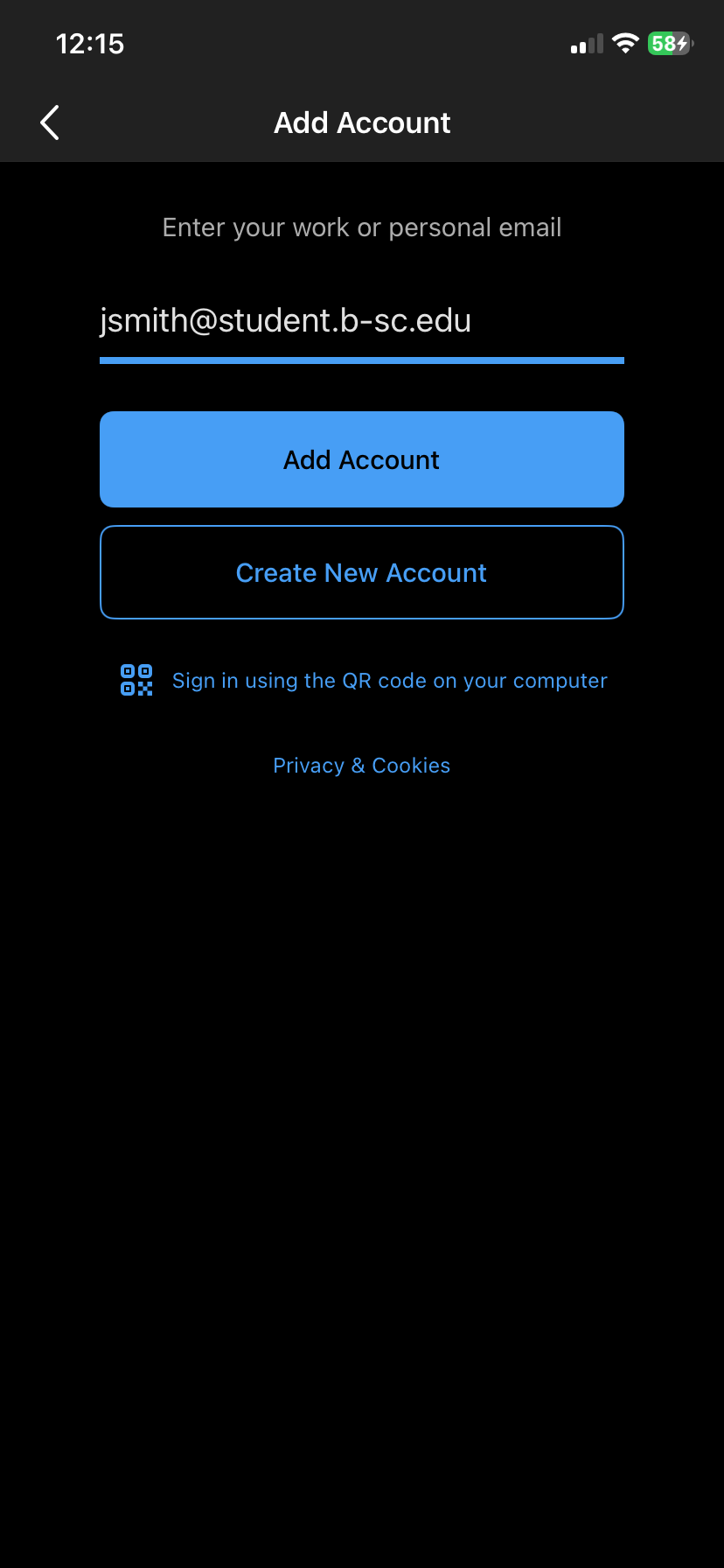
Enter your full BSC email address and tap Add Account.
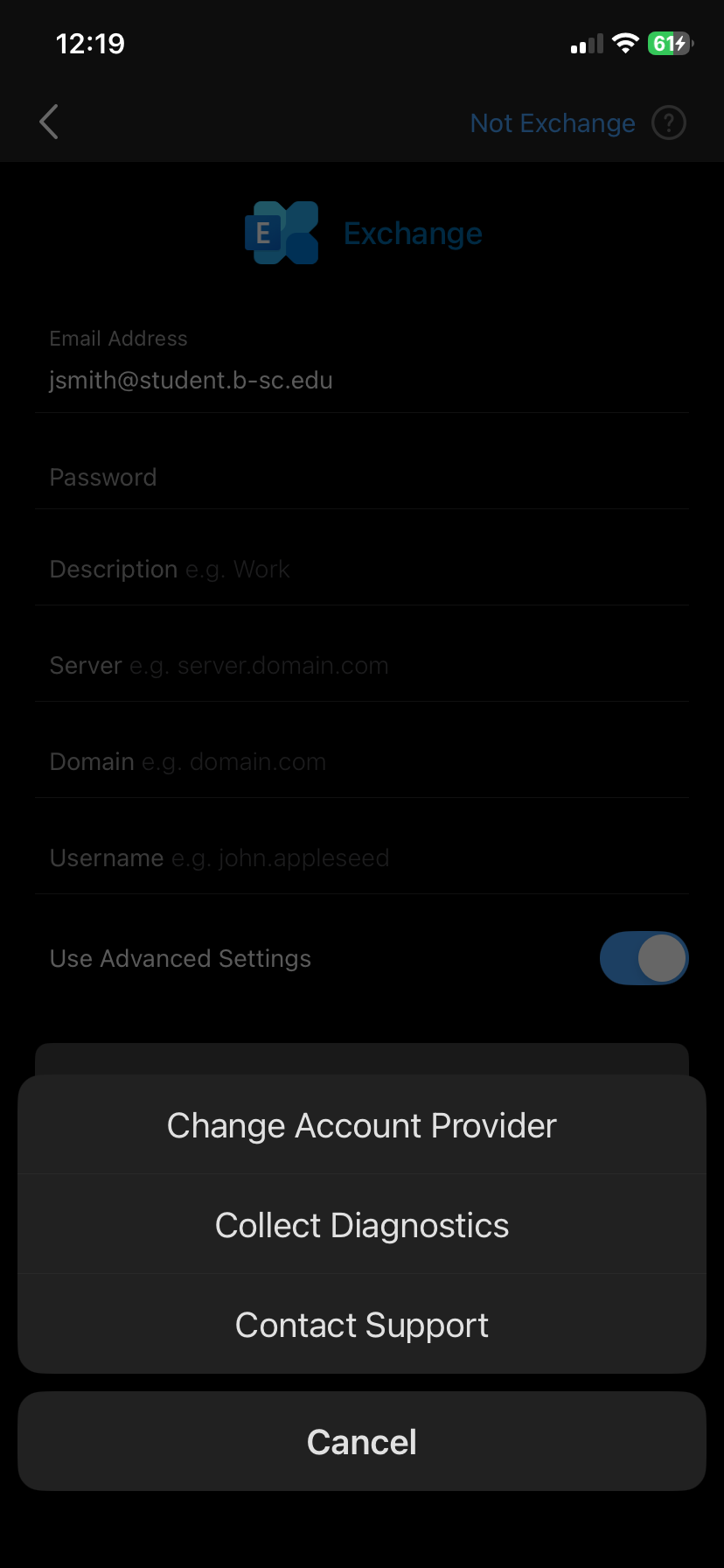
Outlook could default to Exchange server. That's expected, but incorrect.
Outlook doesn't recognize b-sc.edu, so it assumes Exchange and shows you an Exchange setup screen. BSC email uses IMAP instead, so you'll switch it over.
Don't fill in anything on the Exchange screen. Those fields won't work for a BSC account.
Tap Not Exchange in the top right corner and select Change Account Provider from the popup window.
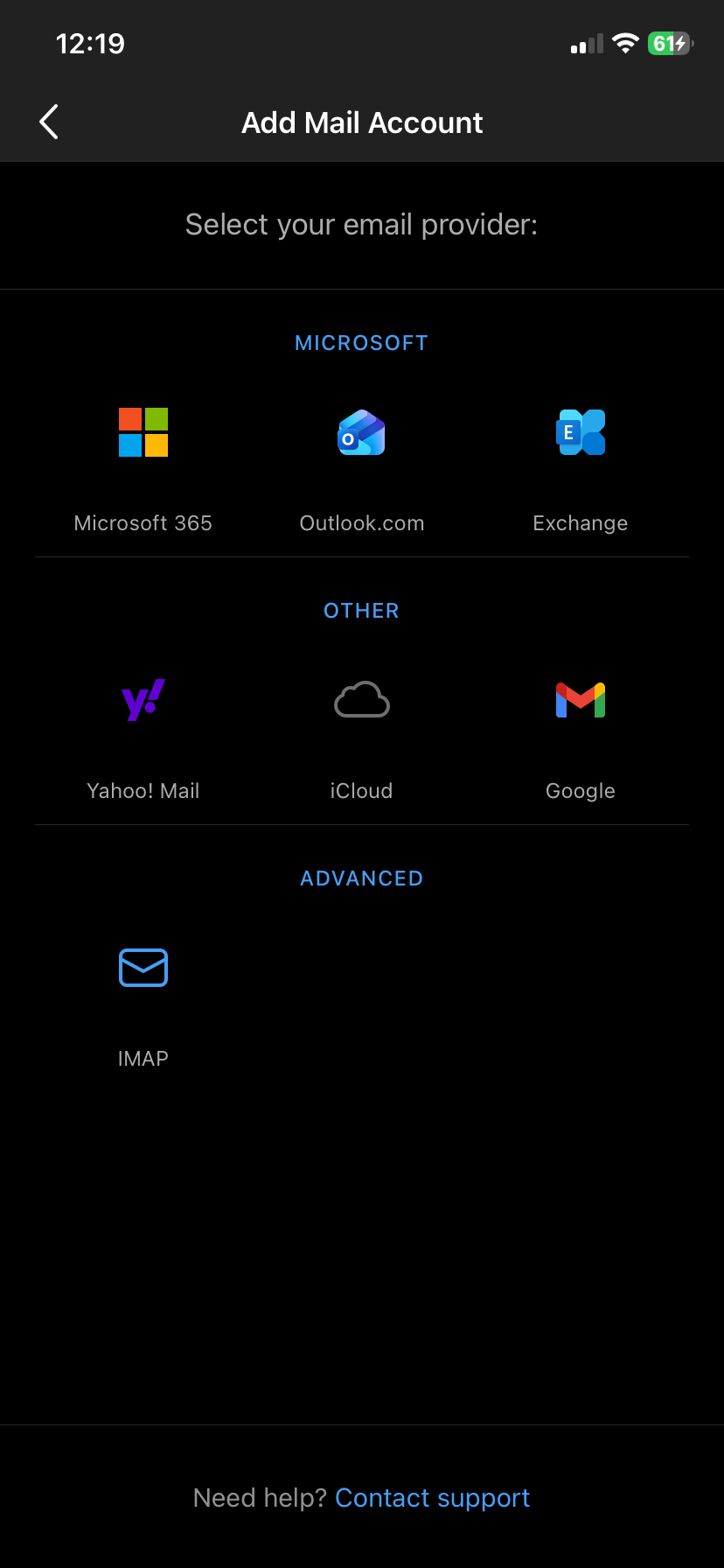
On the email provider list that appears, find and tap IMAP, on this screenshot the icon is located at the bottom.
Turn on Use Advanced Settings
The IMAP screen opens with just a few fields, and your email address will be blank again. Before entering anything, switch Use Advanced Settings on at the bottom of the screen. The screen will expand with the server fields you need.
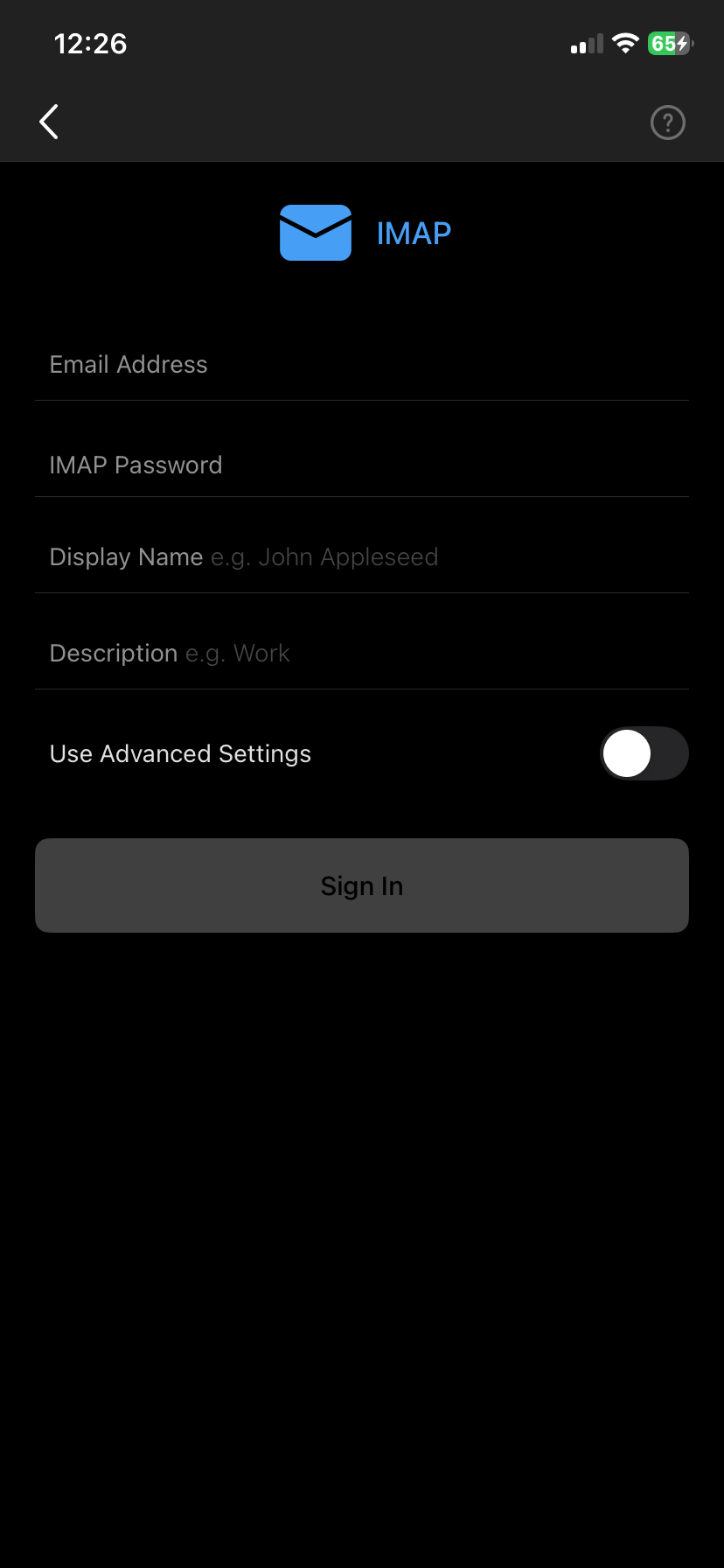
If you fill in the short version and tap Sign In without turning this on, Outlook won't be able to connect.
Fill in the fields
The fields appear in this order as you scroll down. Fill in all of them.
| Email Address | Your full BSC email address, ending in @student.b-sc.edu |
| Display Name | Your first and last name. This is what people see when you email them, so use the name your professors will recognize. |
| Description | BSC Email. This is just a label for you. |
| IMAP Incoming Mail Server | |
| IMAP Hostname | mail.b-sc.edu |
| IMAP Port | 993 |
| Port Security | SSL |
| IMAP Username | Your full BSC email address, again |
| IMAP Password | Your BSC email password |
| SMTP Outgoing Mail Server | |
| SMTP Hostname | mail.b-sc.edu |
| SMTP Port | 465 |
| Port Security | SSL |
| SMTP Username | Your full BSC email address, again |
| SMTP Password | Your BSC email password |
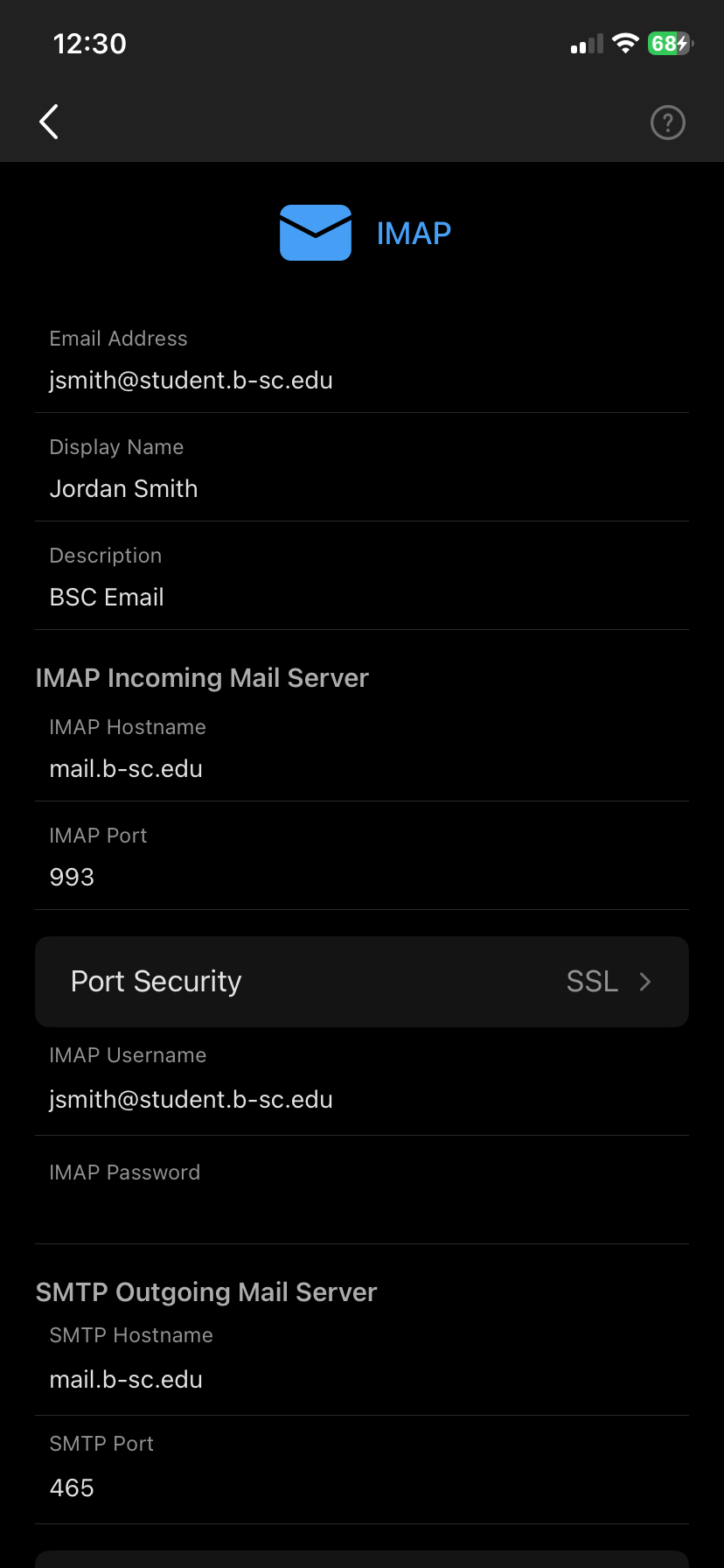
Both username fields need the whole address, not just the part before the @ sign. That's the most common thing to cause the email setup to fail.
Port Security should already say SSL in both places. Leave it.
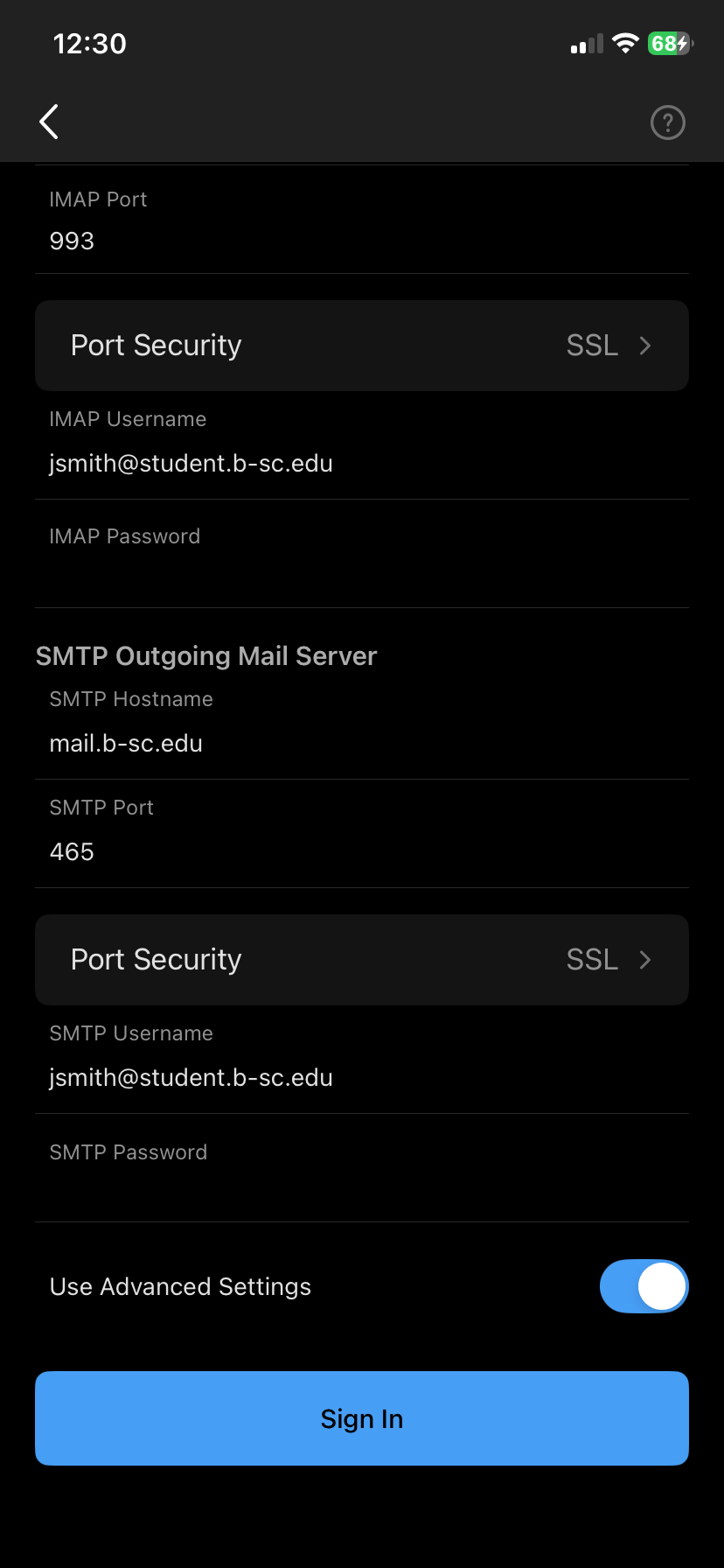
Scroll to the bottom and tap Sign In.
Finish setup
Outlook asks whether you'd like to add another account. Tap Maybe Later.
Then you'll get two notification prompts, one from Outlook and one from your iPhone.
Optional: Tap Turn On, then Allow. Both are needed for College messages to reach you and stay up to date while away from your computer.
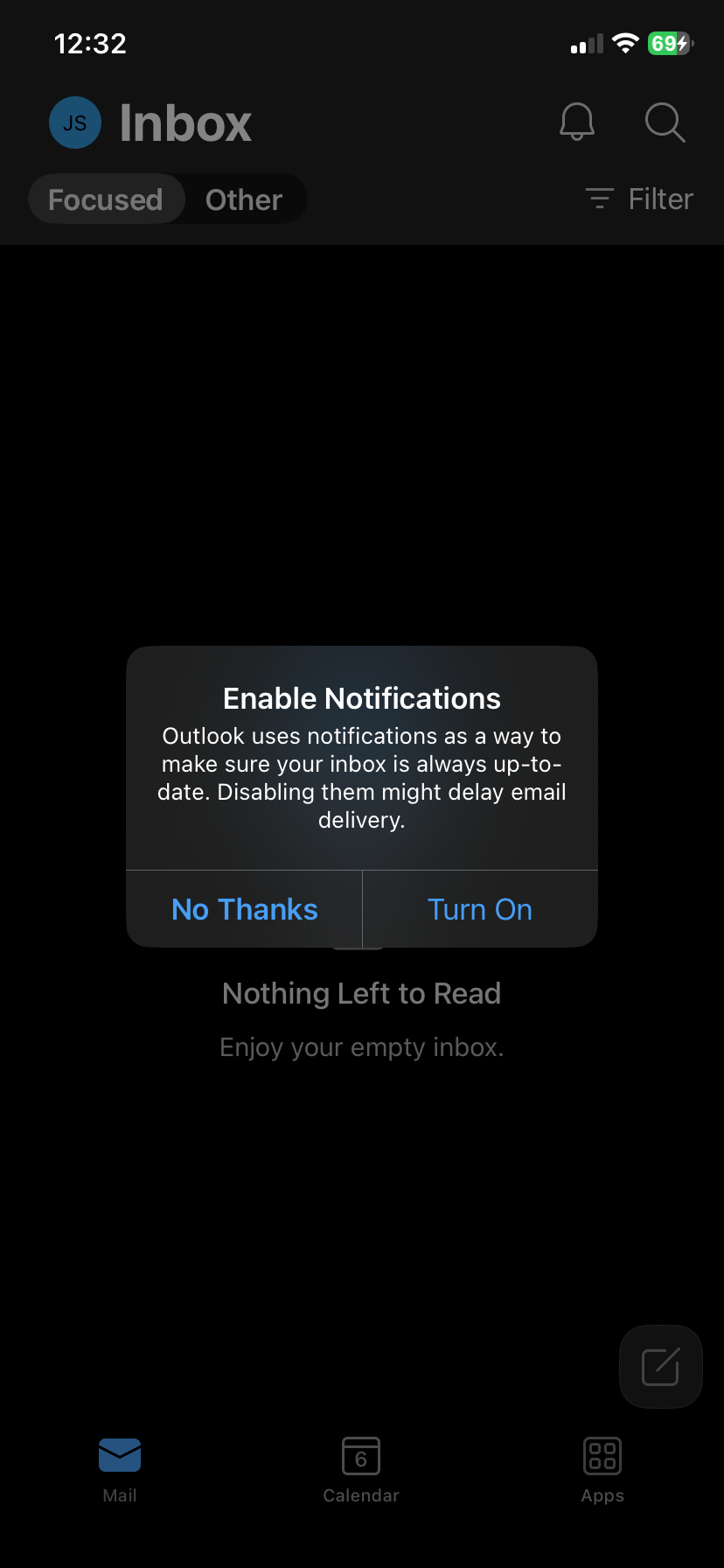
Your inbox opens, and setup is done.
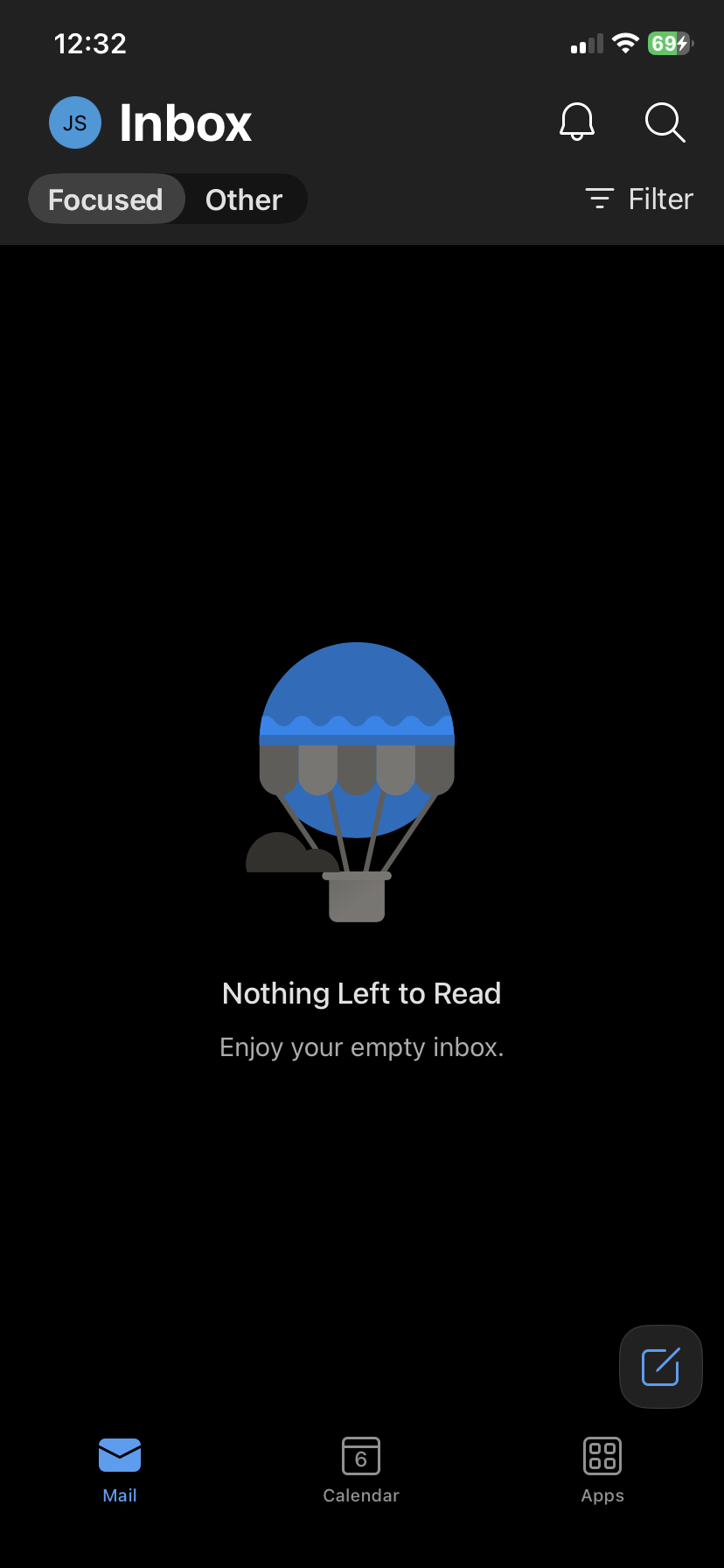
Check the Other tab
Outlook sorts mail into Focused and Other, and it decides which is which on its own. College messages sometimes land in Other, so check that tab for the first week or two until Outlook learns.
To turn the sorting off entirely, tap your profile picture, then the settings gear, then Focused Inbox, and switch it off. Everything then arrives in one list.
If it won't connect
Check the username fields first. Both need the full address including @student.b-sc.edu.
If Outlook set the account up without ever showing you the server fields, it went down the Exchange path. Remove the account and start again, tapping Not Exchange and choosing IMAP.
If you've recently reset your password, remove the account and add it again so it picks up the new one.
Still stuck, email helpdesk@b-sc.edu with a screenshot of the error.
Was this article helpful?
That’s Great!
Thank you for your feedback
Sorry! We couldn't be helpful
Thank you for your feedback
Feedback sent
We appreciate your effort and will try to fix the article